
 Posts
Posts




| ||||||
 A driver of pragmatic solutions to customers who wants to be one step ahead in today's rapidly transforming business world. Century Software recognises the challenges in business today, and aim to provide dependable, reliable quality products and high value professional services. Century Software has a dynamic portfolio of experienced professionals, proven implementation methodologies and well-established processes that cater for our diverse clientele. The new frontiers are met through our commitment to R & D and our innovative groundbreaking solutions. Century Software is proud to consistently provide solutions that are creative, technically superior and of high quality. "Quality is not a destination but a continual journey." Our offerings include Financial Management for Government and Commercial sectors, Retail, Distribution and Business Performance Management solutions. Century Software outreach: Malaysia, Singapore, Thailand & Cambodi
"Century Financials is accessible, even to your most remote user" It is all you need to grow from tens of users to thousands. Adding a new branch or cost centre is easy and hassle-free with Century Financials. Century Financials gives you technology independence. It's user interface is browser based making it adaptable to run on whatever platform that meets your needs - whether it is Windows, Mac OS X, Linux, or Mobile. Century Software has always delivered quality systems for the market. With Century Financials and our implementation expertise, Century Software will provide you with a powerful solution to give you a business edge over your competitors. | ||||||
Showing posts with label BILL GATES. Show all posts
Showing posts with label BILL GATES. Show all posts
Friday, 28 September 2012
century software ready for ibm


Over half of surveyed Windows 8 users prefer Windows 7
Well, this can't be good news for Microsoft, as a recent survey of Windows 8 users found that just over half of them still prefer Windows 7.
The survey comes from Forumswindows8.com, an independent help and support site for the new operating system.
After polling 50,000 active Windows 8 users, 53 percent of respondents said that Windows 7 is still their favorite Windows OS while only 25 percent said that they preferred Windows 8.
When asked about individual Windows 8 features, fast boot up and shut down times came out on top with 56 percent saying it was their favorite feature.
Easy installation came in a close second with 50 percent citing it as their favorite feature, while Internet Explorer was a distant third with 35 percent of respondents.
First, the bad news...
The much-touted Windows 8 UI (formerly called the Metro UI) came in further down the list of favorite features, garnering praise from only 22 percent of those surveyed.
The charms bar, another Windows 8 staple, only resonated with 13 percent of users, and received the lowest ranking for favorite Windows 8 feature just above "other."
According to the survey, the number one weakness to be improved in Windows 8 is the price, with 35 percent of respondents saying it is their biggest concern with the OS.
Users will be able to upgrade to Windows 8 for only $39.99, or $69.99 at retail, for the first few months. However, in February after the promotional period ends the price jumps up to $199.99, which is where the price concerns may stem from.
After price, the major Windows 8 concerns were system requirements and software compatibility, which were respectively listed as the top concern for 26 percent and 25 percent of respondents.
Now, some good news...
It isn't all bad news for Windows 8 though, as the people surveyed said they like the idea of using the operating system on tablets. And, 35 percent said that the Microsoft Surface tablet was their first choice, compared to 33 percent saying Android and 26 percent wanting an iPad.
Windows Phone 8 also beat out the iPhone with 29 percent saying they would prefer Microsoft's mobile OS compared to 22 percent favoring Apple's smartphone. Both were well behind Android though, with 42 percent saying they prefer it over either Windows Phone 8 or an iPhone.
Windows 8 will be Microsoft's biggest shift for its operating system yet when it launches on Oct. 26.
Although according to Intel, the OS may not be completely ready in time for launch, with final optimizations and improvements to get patched in after the fact.
Thursday, 27 September 2012
HOW TO SET UP AN AIR VIDEO IN APPLE TV
How to set up Air Video
1. Install the client

Download and install the Air Video client from http://inmethod.com or theiTunes Store. Once it's launched, you'll see the icon in your menu bar. Click it and select 'Preferences' to open the app's preferences.
2. Define shared folders

In the Air Video Server Preferences, select the Shared Folders tab. Click 'Add Folder', select a folder where you have stored some videos, and click Open. It will be added to the list. Repeat with other relevant folders.
3. Use the app

When the server's running (toggle in the preferences or the menu item), you can now access your shared folders from the Air Video app and stream videos within, which can be sent to your Apple TV via AirPlay.
APPLE RELEASE UPDATE NEWS AND RUMOURS


Apple releases update for Apple TV
Update 5.1 now available


A new update for both second and third generation Apple TV devices was released Monday, Software Update 5.1.
Though the update brings a few new features and upgrades into play, there aren't many major improvements.
Chief among the additions is the ability to view Shared Photo Streams, which now allows you to "browse photos and comments, and receive notifications of new content," according to Apple's support page.
Additionally, 5.1 allows users to have more than one iTunes account per device, and will make switching between those accounts simple and easy.
Improved stability and AirPlay integration
While there are also some performance-related improvements to Apple TV, some smaller additions have also been implemented.
There's now some better AirPlay functionality, including the ability to "send audio content from Apple TV to AirPlay-enabled speakers and devices."
That includes both AirPort Express and additional Apple TVs.
Fortunately, users can protect their AirPlay with an onscreen code, which should help prevent others from hijacking things like party playlists.
Users will also be able to search for movie trailers right from their Apple TVs, and U.S. users can now local theater times.
New screen savers have been added, and users will also find better options for subtitling after updating their Apple TV.
When faced with the prospect of buying an Apple TV, a question many people ask is: "Why would I want one?"
And, to be fair, Apple's black hockey puck does initially appear quite limited and restricted - a seemingly impenetrable box that doesn't even enable you to load apps, nor offer the freedom of watching whatever you want, whenever you want.
Critics often use it to bash Apple's 'closed ecosystem', arguing that the Apple TV is little more than a device designed to funnel more of your money to the iTunes Store and Apple's ever-growing cash mountain. Even Apple itself isn't particularly bullish about its tiny device, referring to it as a 'hobby', and usually only gives it the briefest of mentions during keynotes and earnings calls, before banging on about the iPad.
But there's clearly something to the Apple TV, otherwise Apple - notorious for its razor-sharp sense of focus - would have canned it a long time ago. We reckon its detractors often miss the point about what the device is for, and, importantly, what it has the potential to be.
For us, the Apple TV is an essential part of our Apple ecosystem. Even out of the box, it can impress in key areas, but add an iOS device to the mix and you have the potential to revolutionise your viewing habits. Bung in a Mac as well and you have the kind of media centre TV addicts would have killed for only a few short years ago.

This feature explains why we're hooked on Apple's tiny black box, and why its future is brighter than ever. By the end you won't so much be asking yourself why would you want one, but instead: why wouldn't you?
The Apple TV, which sets you back £99 in the UK, is a simple unit and it's very easy to set up. It connects to a TV via a single HDMI lead, optionally to an amp via optical audio, and to your network via Wi-Fi.
The latest interface revision's home screen is vaguely iOS-like, providing straightforward access to a number of sections and content sources.
Box of tricks

First up, you get Movies, which is essentially a rental service. Not every film you'd find in a brick-and-mortar shiny-disc rental shop finds its way to the iTunes Store (which is where the Apple TV draws its content from), but the selection is improving all the time.
Pricing isn't too bad either, at £3.49 per film. Although you can perhaps find better deals if you venture into your local town, the Apple TV wins out through immediacy: confirm a rental and it starts streaming. Assuming you have a reasonable broadband connection, even HD movies should be ready to watch within a few minutes at most.
If something crops up and you no longer have time to sit in front of your TV, you can delay starting the film for up to 30 days, but once you press play you've got 48 hours (24 in the USA) before the rental disappears. Note that you can also watch a film as many times as you wish during the limited window - handy if you fall asleep half-way through while the rest of your family remains glued to the screen.
The next option is TV Shows. Although Apple briefly flirted with TV show rentals in the USA, all shows are now purchase-based. You can buy shows by the episode or series, and cost varies depending on the network, the show itself and whether or not you're downloading HD. Expect to pay up to £2.49 per HD episode, although buying an entire season or series usually drops the per-episode price average, and the iTunes Store also offers regular sales on older shows.
If you're not all that fussed regarding picture quality, switch Video Resolution to SD in the iTunes Store section of Settings to save yourself a few quid.
Note that because the Apple TV is a device with limited storage (its guts essentially reveal a headless 8GB iPod touch), you don't store purchases on the device itself. Instead, TV shows are stored in Apple's iCloud service and streamed on demand. (This is also the case for an increasing number of movies in the USA, which can be purchased rather than just rented through the Apple TV. We assume this feature will eventually find its way to the UK.)
Beyond iTunes

The third option on the home screen is Music, which is also service-based, in that it's a link to iTunes Match. This is a £21.99 per year subscription that attempts to match the music collection stored on your Mac and then enable you to play it back through Apple devices, without having to sync myriad files between said devices.
This option works nicely if you're already using iTunes Match. If you're not, there are other ways to get your music - and, in fact, plenty of other non-iTunes Store content - on to your Apple TV. The fourth of the home screen's options is Computers, and this enables you to connect your Apple TV to the iTunes Library of any Mac (or PC) on your network that you've set to allow Home Sharing (Advanced > Turn On Home Sharing in iTunes).
Once connected to a Mac, you get a menu on the Apple TV that enables you to access all relevant content that's sitting in iTunes: music, movies, TV shows, podcasts, iTunes U content and photos. Although this does have the downside of requiring your Mac to be awake, the benefits are clear: you're not reliant on the iTunes Store.
If you've used the likes of Handbrake to convert videos to an iOS-compatible format, and stored the results in iTunes, the Computers section will enable you to access this footage. If you're not using iTunes Match, you get access to your music collection, for no cost.
The remaining items on the Apple TV home screen refer to specific online services, further expanding the content you can access via the device. Some of the options, such as YouTube and Vimeo, are free, whereas others, such as Netflix, require a subscription.
Towards the end of the list you'll also find several photo services, if you fancy turning your television into a massive, energy-guzzling photo frame.
Remote control

Whatever type of content you're trying to access, one thing will become clear before long: the remote control that Apple bundles with the Apple TV is dumbed down to the point of it being borderline useless in certain scenarios, and this is exacerbated by the nature of the Apple TV's linear-list menus.
For basic tasks, the remote is okay - you can use it to play and pause and it's fine for navigating the latest movies and grabbing one to rent. But it's very easy to lose your patience when entering search terms and passwords letter-by-letter, using the tiny direction arrows and clicking the play button to confirm each character. And if you've a big music collection, scrolling down a massive list of artists or albums gets old really fast.
For such tasks, Apple offers the Remote app. A free download from iTunes, it has two primary functions. The first is turning any iOS device into a gesture-based touchscreen controller. Menus are navigated by swiping and tapping, but more importantly, whenever you find yourself confronted by a text field, the iOS keyboard pops up. Typing on an iOS device might be slower than using a traditional keyboard, but it's certainly a lot faster to enter a password using an iPhone, iPod touch or iPad than it is to navigate around the screen with the Apple TV remote.
The Remote app has further gestures, too. When a video is playing, you can flick left and right to rewind and fast-forward, or drag-hold to scrub through footage; if you flick down, you'll gain access to chapter markers and can then flick left or right to skip.
Similarly, when playing music you can drag to scrub or flick to access the previous or next tracks. The other thing the Remote app is great for is navigating the media you have stored in iTunes. On the iPad in particular, Remote rather resembles a miniature version of Apple's desktop jukebox, and enables you to rapidly search a collection to find an album or video you'd like to listen to or watch.
You don't have to scroll down a massive list of artists (which can take some time), click an album, then click again to play a track; instead, you can slide your finger down the side of the iOS device's screen, tap an album's artwork, and then choose a track once it spins round on the iPad, or when the track-listing slides into view on an iPhone or iPod touch.
Although Remote is definitely the first app we recommend that new Apple TV owners download, it's far from the last, and that's because the App Store - in combination with the AirPlay feature - opens up a world of possibilities for the device.
READ THE NEXT POST TO FIND OUT MORE
WINDOW SURFACE - A NEW GENERATION TABLET

The super-thin keyboard cover and the satisfying-sounding hinge are all well and good, but what's the Surface tablet actually like to use?
At this stage Microsoft is being very cagey and no-one has had much time using Surface RT yet, but from our experience of trying it out, Microsoft has done exactly what it set out to do.
This is a Windows tablet designed first and foremost to run Windows – and especially the Metro Start screen and Metro-style apps with touch controls – and it does it very well.

Surface Pro is an Intel Core i5 Ivy Bridge tablet; it's fast enough for demanding programs like Adobe Lightroom and the touchpad on the keyboard cover means you get the precision of a mouse for fiddly interfaces.
But Surface RT is an ARM tablet, running Microsoft's first version of Windows for RT and the company's first real tablet-friendly operating system.
The good news is that Windows RT feels just like Windows 8 – and it works well on a touchscreen.
The icons of the Start screen and the screens of apps like News scroll smoothly as you swipe across the screen (what Microsoft calls fast and fluid).

Semantic zoom is equally fast and smooth; you can get through a lot of movies in the preview Netflix app to find the one you want and tap to start playing it full screen.
Snapping two applications side by side, so you can read Mail and enjoy photos or Web sites in the 4:3 aspect ratio looks great (apart from widescreen windows) and is also smooth and fast; drag an application from the side and drop it on the side of the screen where you want to see it.
Swiping up from the edge of the Surface tablet's bezel to see the app bar in Metro applications or swiping in from the side of the screen to get the Charm bar is fluid too - you don't have to swipe slowly the way you do on older touchscreen PCs.

Surface RT runs any Metro application, so that's anything in the Windows Store at this point, plus the Windows desktop – but only for desktop IE and the Office applications.
For working with the desktop, touch is fine for dragging windows around and scrolling through documents and Web pages, but if you're working in Excel or one of the other Office 2013 RT Home and Student programs included with Surface RT you'll probably want the touchpad (you probably want the keyboard anyway of course).
Microsoft Surface tablet - portrait mode
Turn Surface RT sideways and it flips the screen instantly and smoothly, although it's not too sensitive – so it doesn't flip back and forth if you angle the screen a little to show it someone.

There's no gratuitous animation as it rotates; you just get the same Start screen or app interface, only in portrait layout.
That works well for the Start screen, because the tiles just rearrange themselves into taller, narrower groups. And documents and Web pages all work well because you can see a full page on screen at once.
Perhaps the most remarkable thing about Surface RT and Windows RT is how unremarkable they feel.
This is Windows 8 and (some of) the Windows desktop.
If you're at all familiar with Windows 8, Surface RT feels like a nice, fast Windows 8 PC that just happens to have an ARM processor.
We need to try it with more apps and different peripherals to see how far that feeling goes, but so far, using Surface RT is using Windows 8 – with all its strengths and foibles.
Surface Pro has some extras above and beyond the Intel processor and the ability to run all your Windows programs.
The Ivy Bridge Core i5 still needs cooling, so there's a groove around the edge; it's 4mm thicker and 227g heavier and the screen resolution is what Microsoft cryptically calls ClearType Full HD.
It's got DisplayPort instead of HDMI and as well as the two keyboard covers it also comes with an active pen.

This clips onto the side using the same magnets as the power cable, so it doesn't get in the way of the keyboard connections.
In your hands though, Surface Pro looks and feels very much the same – and the Touch Cover and Type Cover fit both interchangeably.
Early verdict
It's a surprise that Microsoft created its own tablet, but it's done a more than decent job of it; far more creative and polished than many Android tablets.
Microsoft has to get the price right – the current thinking is comparable withiPad and 10-inch Android tablets for Surface RT rather than with the 7-inch Kindle Fire – and battery life has to be good.
Surface doesn't feel like an iPad in your hands; it feels like a well-designed Windows tablet crammed with clever touches that make it practical.
But this is the first hurdle in a number to come in the tablet race – sure, the design and construction of the Microsoft Surface tablet is great and in a blind test would fare well against the best the tablet world has to offer.
The next stage is convincing the world that Windows 8 is a comparable tablet OS to iOS and Android, and making it competitive on cost too.
But the first move is a good one – giving choice, an excellent array of hardware and a well-designed tablet range to those that are still unsure whether the current crop of slates can match their needs.
It also sends a message to Microsoft's hardware partners: this is the standard for Windows 8 tablets should adhere to, unless you're going to get seriously competitive on price.
AMAZING INFO ABOUT WINDOW SURFACE

The Touch Cover is the ultra-thin touch keyboard for those that value portability; the Type Cover is the slightly thicker keyboard with physical buttons for those that want keys that actually move rather than just the audio feedback of the Touch Cover.
Both have the same connection and they snap into the magnetic latch easily but firmly; little latches fit into the Surface itself, which is why it stays in place even if you're holding the cover and letting the keyboard drop under its own weight.

Snap either cover in place and instead of the sharp edge on one side, you have a comfortable grip that feels like the edge of a magazine or a thin hardback book – it's equally comfortable to hold whether the cover is closed to protect a screen that doesn't really need protection or folded back.
As soon as you fold the cover forward against the screen it turns the Surface off (putting it into Connected Standby – we're wondering if Apple's patent lawyers are rubbing their hands with glee at more work); when you fold it back against the hinge the accelerometer turns the keyboard off automatically so you're not typing while you hold it.

That's the same feature as on Lenovo's Yoga notebook, but with a much thinner keyboard to fold back.
The Touch Cover looks more like a picture of a keyboard than an actual keyboard; it's the same multitouch sensors Microsoft used inside theSidewinder keyboard.
They're very thin but they're also very accurate so they pick up your typing well. The keys are a good size with a little spacing between them; the touchpad underneath is a little small but it has left and right buttons – and you have the whole touch screen for larger gestures.

You'll use the touchpad when you want the precision of placing the mouse cursor inside a word.
The Touch Cover comes in five colours: white, black, red plus cyan and magenta versions that will match Nokia's cyan and magenta Lumia rangenicely.
Typing on the Touch Cover is a little odd at first because the keys don't move under your fingers; but they don't pick up typing until you actually hit the keys so just resting your hand on the keyboard or even putting your fingers in place on the keyboard while you think about what to say doesn't generate stray characters.

The soft surface is more comfortable and less slippery than typing on a screen – not to mention being at the right angle.
It is harder on your fingers than typing on a keyboard with physical keys that give as you type, so if you type a lot there's the Type Cover.
This has the same strokeable soft feel as the Surface chassis itself and the keys go down a surprising distance for a keyboard that's still so thin.

As well as all the usual keys, down to backslash, pipe and a nicely arranged set of four arrow keys, the top row of keys has the volume, media playback and navigation keys you'd expect – and that's Home, End, Page Up, Page Down and Delete but not the irritating Insert key that does nothing but make Word type over what you've already written.
Between them are four keys you won't have seen before but will recognise from the Windows 8 interface; they're the Search, Share, Devices and Settings buttons from the Charm bar so you can get at them without having to take your hands of the keyboard to swipe across the screen.
The Type Cover has those keys labelled as function keys as well; the Function lock button is on the Touch Cover as well so you can use F7 in Word to start spell check of Shift F3 to change case if you want to.
Presumably, Microsoft believes that if you know what function keys are you can find them by the number keys in the row below.

The back of the keyboard covers (and the front of the Touch Cover) are a tough microfibre fleece made especially for Microsoft; it's soft to the touch, comfortable and gives you a good grip.
MICROSOFT SURFACE REVIEW

Hands on: Microsoft Surface tablet review
Our first look at the new player in the tablet race
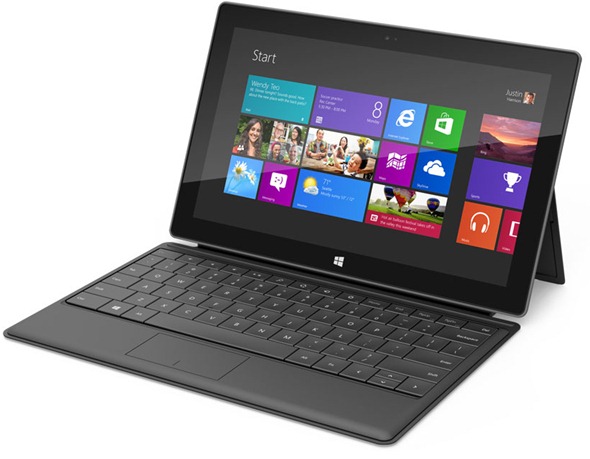
Update: We've spent some time updating our experience with the Microsoft Surface tablet's interface - including detailing that elusive portrait mode.
Magnesium chassis, vapour deposition coating, cutaway edges, ClearType HD display; the design credentials and the specs for Microsoft's new Windows RT tablet are impressive and in the flesh this is a delightful piece of hardware that looks good – and is practical too.
It's thin, it's light, it's comfortable to hold, it runs Windows RT as excellently as you'd expect, it makes you want to touch it but it's also designed so you can snap the magnetically attached cover into place – in no way similar to any competitor idea...
However, you won't be able to get the Surface tablet until Windows 8 ships – and we can't get its big brother, the Intel Core i5 Surface for Windows 8 Pro, for another three months after that.
Design
The design of the Surface for Windows RT (and the similar Surface for Windows 8 Pro that we didn't see in as much detail) is understated.

The front is sleek black glass, precision bonded to the magnesium alloy chassis ("we squeezed all the air out," as Microsoft hardware expert Stevie Battiche told TechRadar), with only a Windows logo visible – the word Microsoft doesn't show up on the case anywhere.
Turn it on and the 10.6" screen fills most of the Surface's front display, but the four edges have half an inch of bezel so you can hold it comfortably.

The Windows logo isn't just for show; it's a touch button that gives you the Start screen when you tap on it, plus the whole bezel is touch-aware so you can swipe across it to bring up the App bar or the switching pane (depending on which way round it is).

The Surface is light and comfortable to hold; the edges are sloped to give you a comfortable grip (although the edge with the cover connector isn't quite as ergonomic until you connect the cover).
The magnesium alloy chassis is covered with a soft coating that feels durable and expensive (that's the vapour deposition bit; it's chemically bonded rather than just painted on).

If you don't want to hold it, there's a built-in stand that's like a large hinge running across the entire back of the Surface, with another Windows logo in a slightly matte finish.
The hinge is usually held in place by an array of magnets so it doesn't fall out if you shake the Surface around; on the left there's a little cutout in the edge of the hinge to make it easier to flip out.

If you've seen Apple's SmartCover on the new iPad 3, then this method of connection won't be a surprise – it's another move that shows Microsoft is intending to go toe-to-toe with the Cupertino brand in the tablet arena.
The Surface tablet also balances well on the hinge, which has two long rubber feet to stabilise it.
With the Touch Cover on, we were able to balance the Surface on a lap for typing like a notebook without it falling forward or tipping over backwards; compare this to the Asus Transformer Prime which always wants to fall backwards, and you'll appreciate this weighting.

Microsoft has included the fewest ports it could get away with; the bottom edge is filled with the magnetic keyboard connector, the top has the power button and the sides have two speakers, dual microphones, microSD, one USB 2.0 port (USB 3.0 for the Surface Pro) and Micro HDMI (on the surface Pro that's mini DisplayPort), plus a magnetic power connector.

The magnesium alloy chassis and the precision design give the Surface RT a sturdy feel. Lift it by the corners and twist and there's no flexing at all; we tried the same thing with the frame of a chassis that hadn't been assembled and even without the glass and back it barely moved.
The Microsoft team showing off the tablets weren't cradling them protectively; at one point Battiche tossed a tablet to a colleague. Even without the cover, the Surface should stand up to some punishment.
READ NEXT POSTS FOR FURTHER INFO
Subscribe to:
Posts (Atom)
Popular Posts
-
 Call of Duty: Black Ops Zombies Now on Available on Android The Call of Duty: Zombies phenomenon has risen back to life. Adapted f...
 -
STICK CRICKET WITH NEW IPL PATCHER STICK CRICKET apk - This game is one of the most popular cricket game for android that come...
-
Another Custom Rom For Galaxy y Duos is available here , a Rom which is themed in ICS looks, all credit goes to senior member HellLock on...
-
ABOUT US PRODUCTS CHOOSE COUNTRY ...
-
iPhone 5 Go Locker Screen Theme Amazing Lockscreen for your smartfone! Get the best lockscreen out there. Fool your friends showing th...
-
Audio Control v1.9 market. android .com.volume.master Audio Control provides an amazing volume management experience. Aud...
-
 Windows 8 is the codename for the upcoming new operating system of MicrosoftWindows that follows Windows 7 . It features a new Metro-sty...
 -
 Remember the horror sci-fi Dead Space? Yes this is the game based on that awesome movie and now also available on android platform. You ar...
 -
Here is a concept phone that I have totally fallen in love with. Name the features and it’s all in there. Flexible screen, projector, camera...
-
Fixie riders are a special breed, to be sure, and very excitable. But what would happen if you took away their gear-less chain sys...
